Voucher
Voucher overview
Voucher Sample:
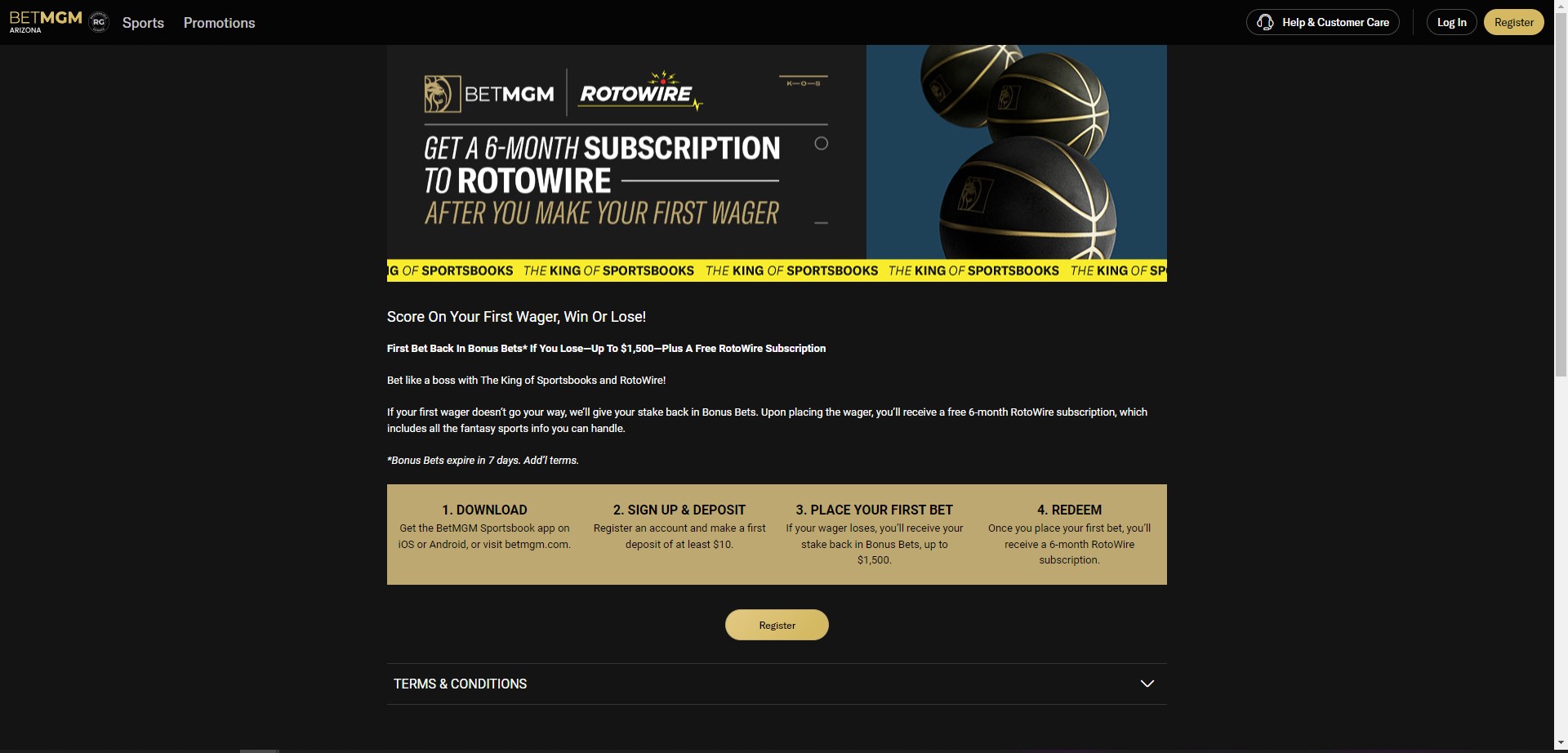
Content > Vanilla.Mobile > m2.state.brand > Promo > Sports
Building the Voucher
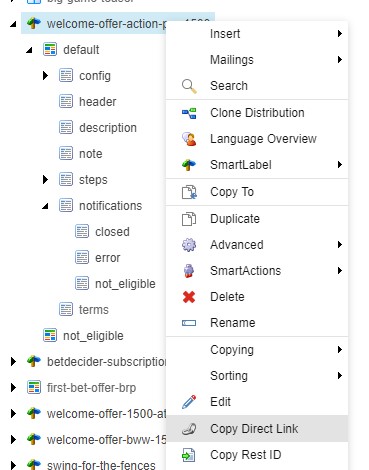
After locating the voucher build on SiteCore, select a voucher build right click on it and select Copy To.
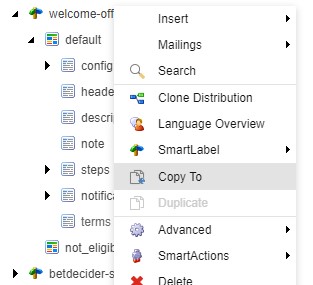
This is the icon for voucher builds 
After copying the build right click on it and rename it with the URL provided by the sub leads.
Config
Go to config.
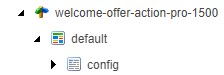
Edit the parameters :

cta_login_label: CTA Title
end_date_utc: Date
This is only if your build is required to change the CTA of your build, if not skip this part and go to the next part.
After editing conifg click Save & Unlock > Proposed > Final
Header
After editing config go to header and add your images here by copying the URL of images under Media Library.
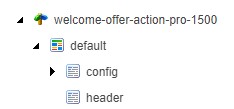
Edit the parameters below:

Image_mobile_src (750x300 this is the size for mobile image)
Image_src (955x291 this is the size for the desktop image)
How to get URL from Media Library
Here's the sample of location of your media library
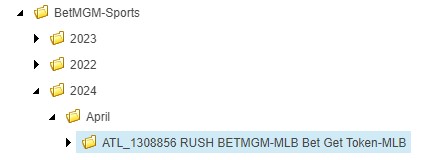
Locate the asset and click on the image and click open to get the URL of the image.
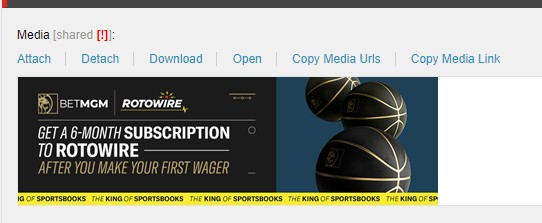
After editing config click Save & Unlock > Proposed > Final
Description
Go to description and edit the Title and Text.
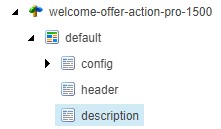
Edit the parameters below:
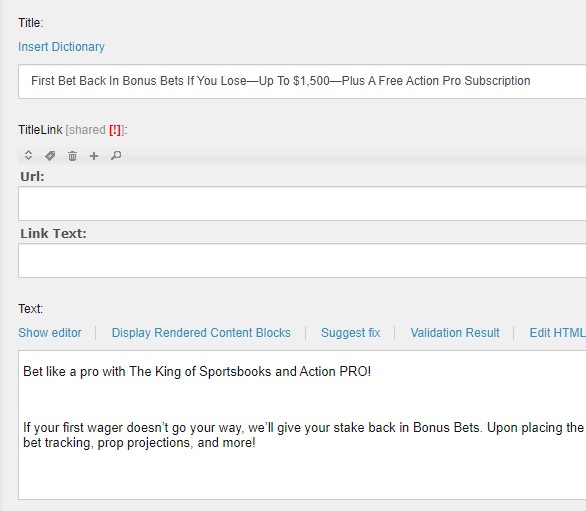
Title: Title will be provided on copy (make sure your title is capitalized each word)
Text: Copy description and add <p> tag on your description and close it with closing p tag </p>
After editing config click Save & Unlock > Proposed > Final
Note: Make sure to add <br> on every <p> tag inside text description.
Steps
Go to steps and edit step_1.
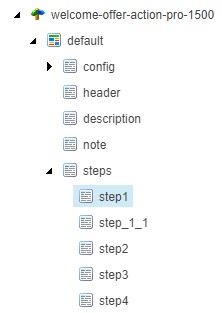
Edit Title and Text.
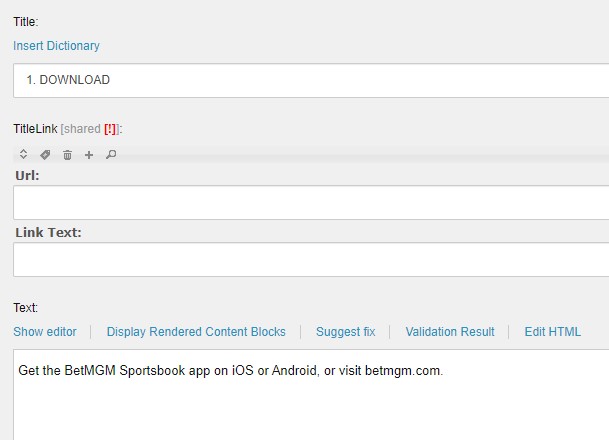
Title: Title will be provided on copy (make sure your title is all caps).
Text: Copy description and add <p> tag on your description and close it with closing p tag </p>.
Edit the parameters below:
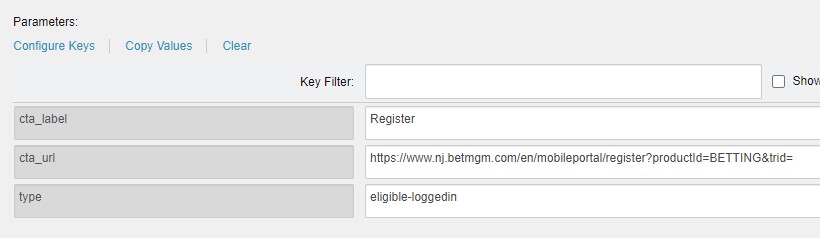
cta_label: CTA Title
cta_url: link
Parameters (CTA): This will depend on your ticket if CTA is needed then edit this field if not needed don’t edit and proceed on saving and finalized your work.
Make sure the state of the link is correct.
After editing conifg click Save & Unlock > Proposed > Final
Terms
After editing steps go to terms to add terms and conditions.
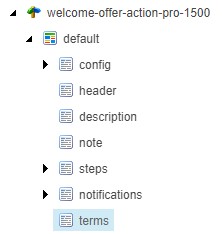
Edit the Text below:
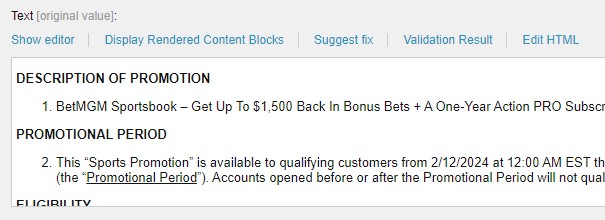
Make sure the title of terms are all caps and no colon at the end.
After editing conifg click Save & Unlock > Proposed > Final
Notification
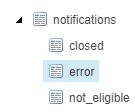
Lastly go to notification and click error.
Edit Parameters:
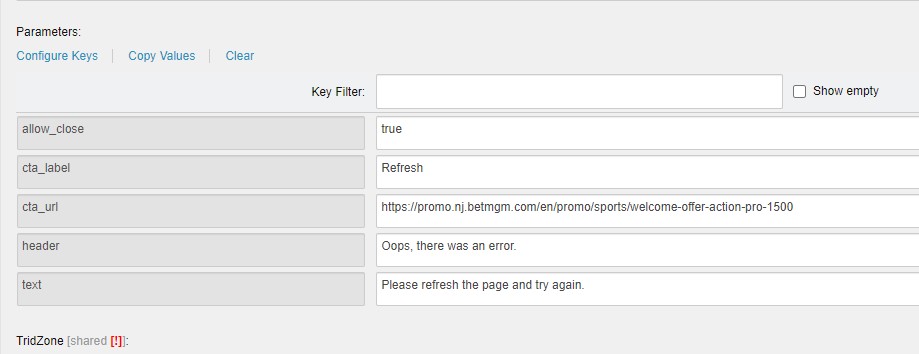
cta_url: link
After editing conifg click Save & Unlock > Proposed > Final
Update on Monday
After saving right click on voucher build and click Copy Direct Link and paste it on Monday.
Copy also the direct link for your creatives located at Media Library Sitecore.
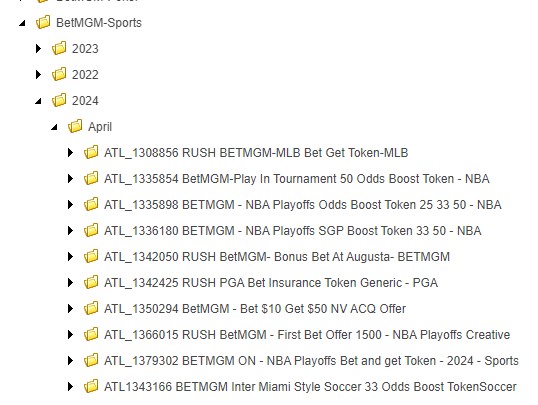
Next step is if your build is on whitelabel that means you will clone it on all states. but if your build is for ON or specific state you will only need to give the specified state link.
For ON:
For Specific State:
For All States:
- Final URL's:
- az: https://promo.az.betmgm.com/en/promo/sports/rotowire-subscription-1500
- co: https://promo.co.betmgm.com/en/promo/sports/rotowire-subscription-1500
- ia: https://promo.ia.betmgm.com/en/promo/sports/rotowire-subscription-1500
- il: https://promo.il.betmgm.com/en/promo/sports/rotowire-subscription-1500
- in: https://promo.in.betmgm.com/en/promo/sports/rotowire-subscription-1500
- ks: https://promo.ks.betmgm.com/en/promo/sports/rotowire-subscription-1500
- ky: https://promo.ky.betmgm.com/en/promo/sports/rotowire-subscription-1500
- la: https://promo.la.betmgm.com/en/promo/sports/rotowire-subscription-1500
- ma: https://promo.ma.betmgm.com/en/promo/sports/rotowire-subscription-1500
- md: https://promo.md.betmgm.com/en/promo/sports/rotowire-subscription-1500
- mi: https://promo.mi.betmgm.com/en/promo/sports/rotowire-subscription-1500
- nc: https://promo.nc.betmgm.com/en/promo/sports/rotowire-subscription-1500
- nj: https://promo.nj.betmgm.com/en/promo/sports/rotowire-subscription-1500
- oh: https://promo.oh.betmgm.com/en/promo/sports/rotowire-subscription-1500
- pa: https://promo.pa.betmgm.com/en/promo/sports/rotowire-subscription-1500
- tn: https://promo.tn.betmgm.com/en/promo/sports/rotowire-subscription-1500
- va: https://promo.va.betmgm.com/en/promo/sports/rotowire-subscription-1500
- wv: https://promo.wv.betmgm.com/en/promo/sports/rotowire-subscription-1500
- wy: https://promo.wy.betmgm.com/en/promo/sports/rotowire-subscription-1500
Here is the sample update on Monday.
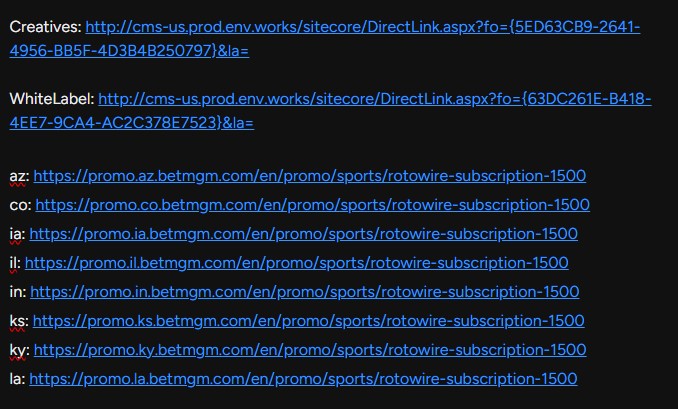
Lastly comment your update on Workfront.