Rest ID
Creating a Rest ID
To create a Rest ID go to the Sitecore path mentioned below and duplicate an existing Rest ID Item.
Content Editor > Marketing > US > CMS-NEW-FOLDER > state-brand > product > year > month
Name the new created Rest ID same with the name of your ticket. Just remove unwanted characters.
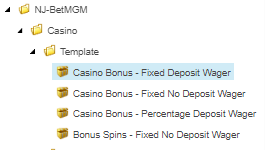
Vivian from US provided a template folder inside the the US Sitecore NJ Folder, we can just copy to these items (except to ON) to the correct folder.
Grouped Rest IDs
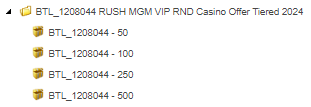
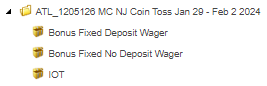
Rest IDs needs to be grouped if a ticket is requiring more than one Rest ID for that create a folder and name it the name of your ticket. Then place the different Rest IDs inside the folder. See examples below.
- Tiered
- Engagement
SectionSelector
Rest ID has different sections that can be displayed or hidden, it will be adjusted depending on the needs of your ticket.

When duplicating Rest ID components most fields will be populated with contents even though it is blank from the source item.
Promohub Section
Get the template value for this section either on your monday.com ticket mentioned by your sub-lead or in the Project Details of your Workfront ticket under the CRM Ops section.
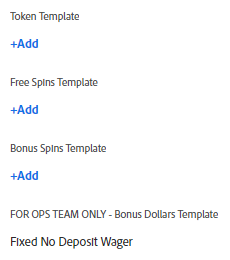
Required Fields
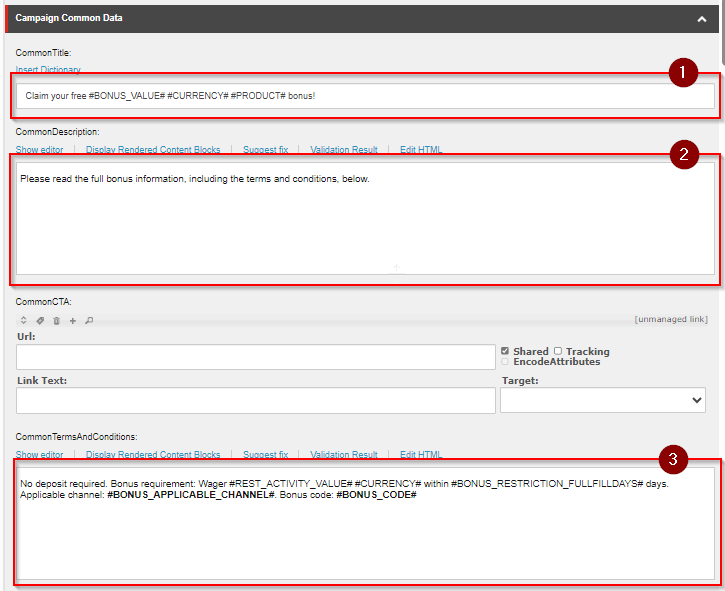
The team uses an internal tool to get the appropriate value for the fields.
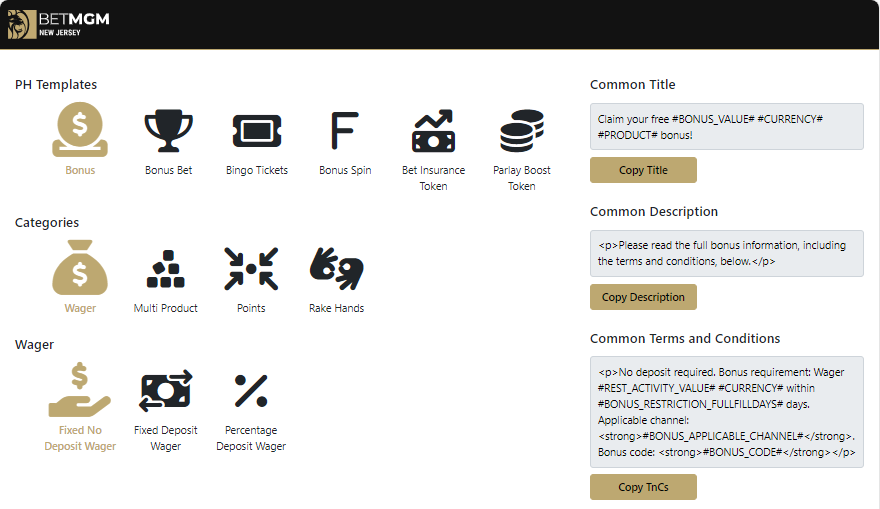
To use the tool, click through each icon to get to the desired values that will be displayed on the right side of the tool and paste the appropriate values on the following fields.
Fields |
|---|
CommonTitle |
CommonDescription |
|
Required Images
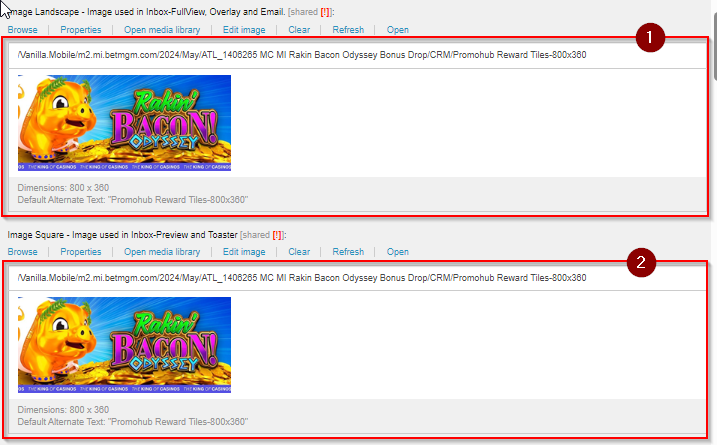
The images will be placed on Image Landscape and Image Square fields, and the choice between Promohub Tiles-800x360 and Promohub Reward Tiles-800x360 depends on whether your build has a provided PAT or EDS. Please refer the guide below:
Provided PAT/EDS | Image |
|---|---|
Yes | Promohub Reward Tiles-800x360 |
No | Promohub Tiles-800x360 |
Inbox
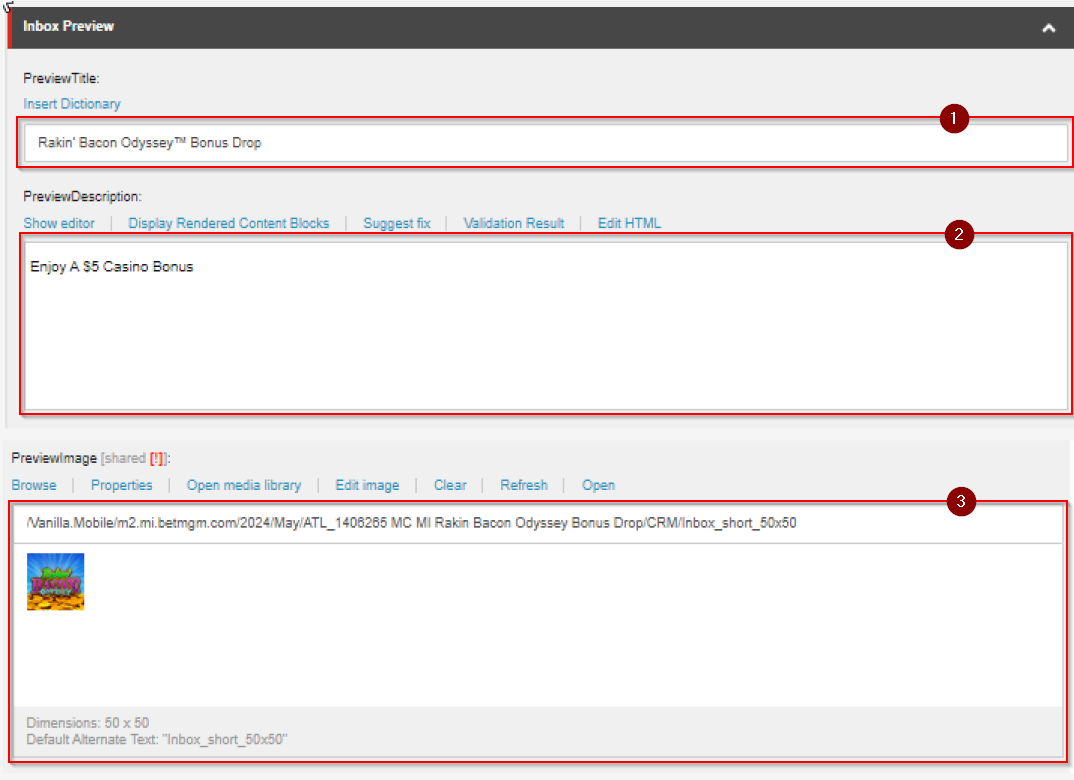
The Inbox is a section for the Rest ID component that holds the values for the notification messages whenever a user recieves one.
Here is an example from BetMGM:
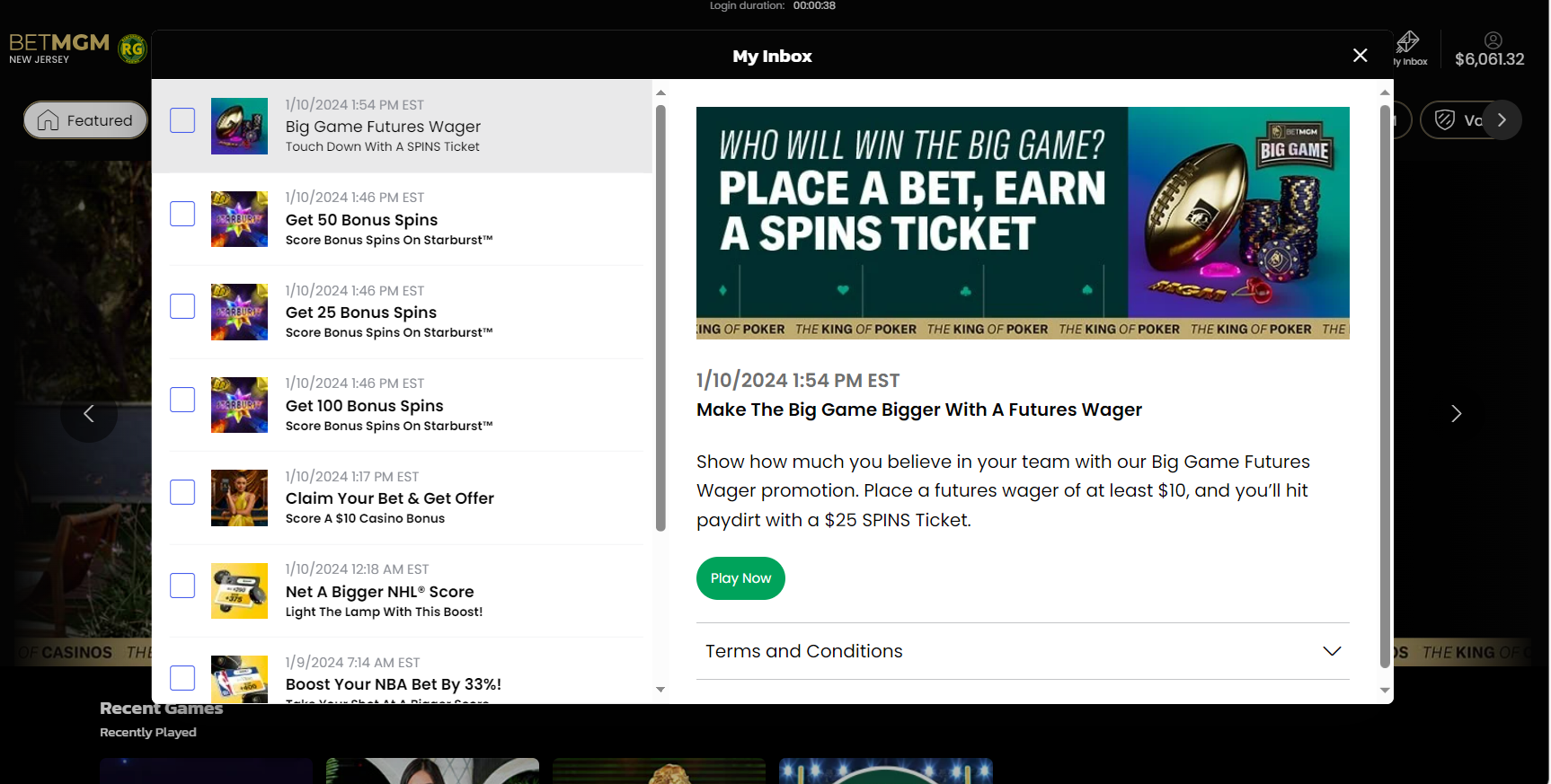
Inbox Preview
Field | Value |
|---|---|
PreviewTitle |
|
PreviewDescription |
|
PreviewImage |
|
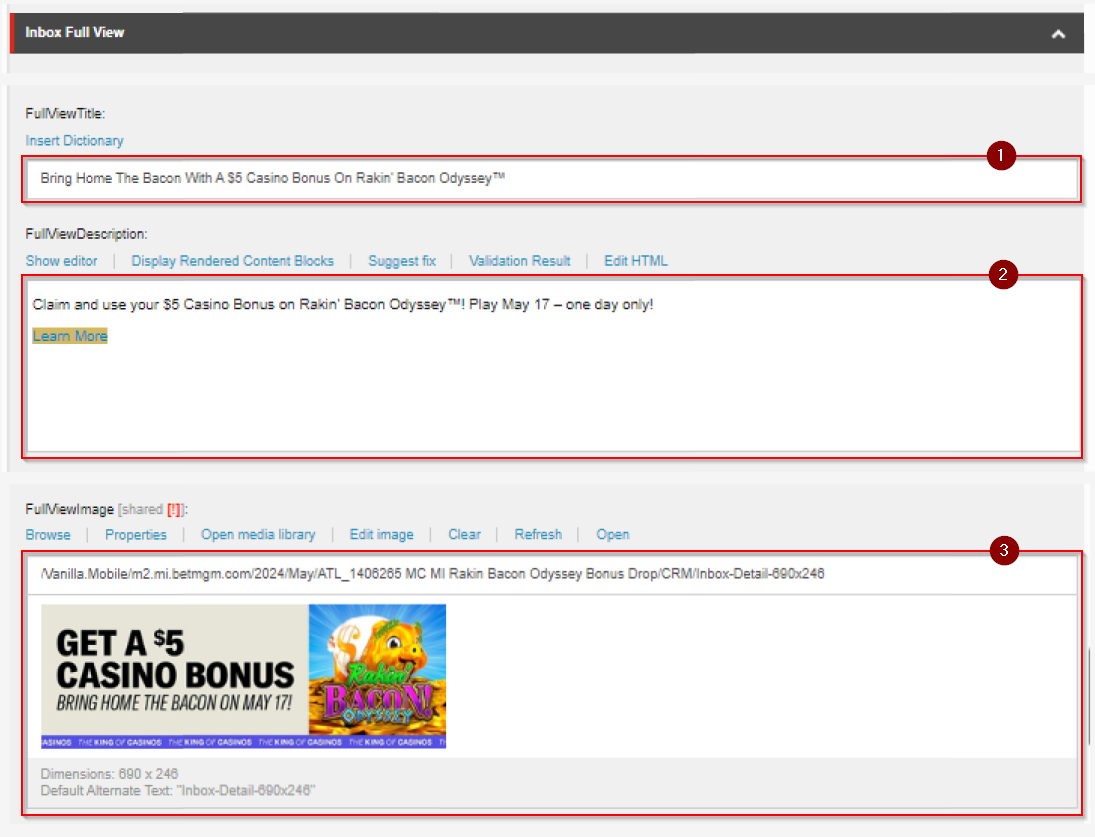
Inbox Fullview
Field | Value |
|---|---|
FullViewTitle |
|
FullViewDescription |
|
FullViewImage |
|
Here is the CTA format for the different labels
Brand & Product | Format |
|---|---|
BetMGM Casino, Party Casino, partypoker & WoF | |
BetMGM Poker | |
Borgata Casino | |
Borgata Poker | |
Please edit the Full View Description using the rich text editor. Ensure that the CTA has the appropriate color applied. Refer to the CTA Guide to determine the correct value for the CTA.
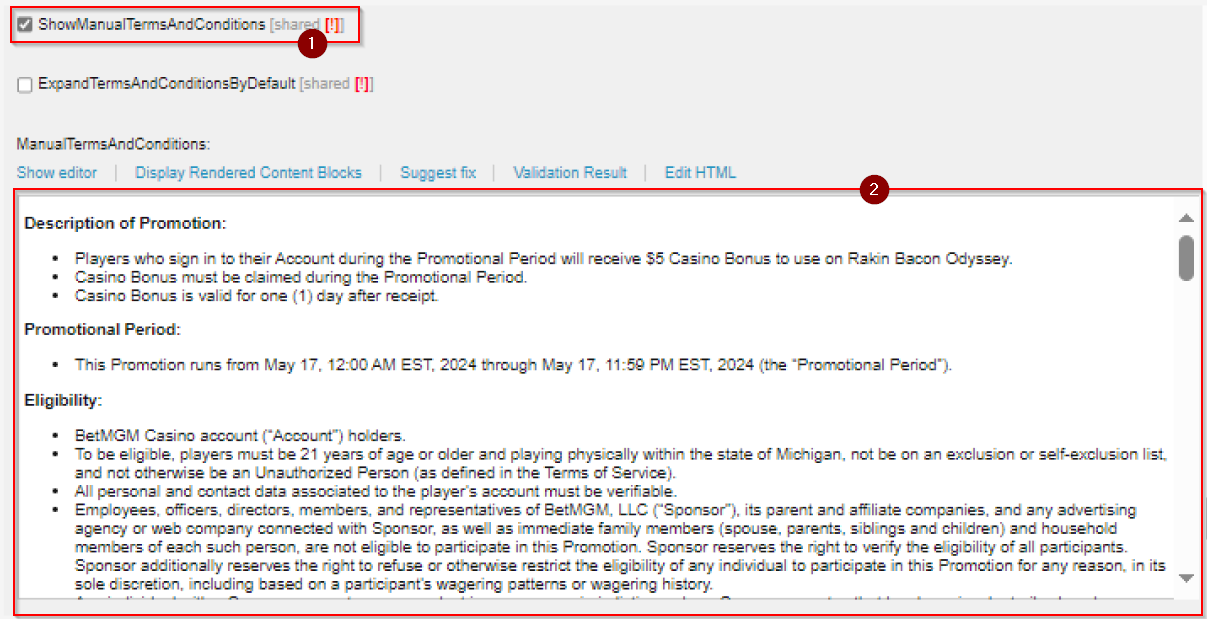
Inbox Terms and Conditions
If Terms and Conditions are required, always ensure that the ShowManualTermsAndConditions checkbox is checked. Conversely, if they are not needed, uncheck the checkbox.
Put the Terms and Conditions on the ManualTermsAndConditions Textarea.
Overlay
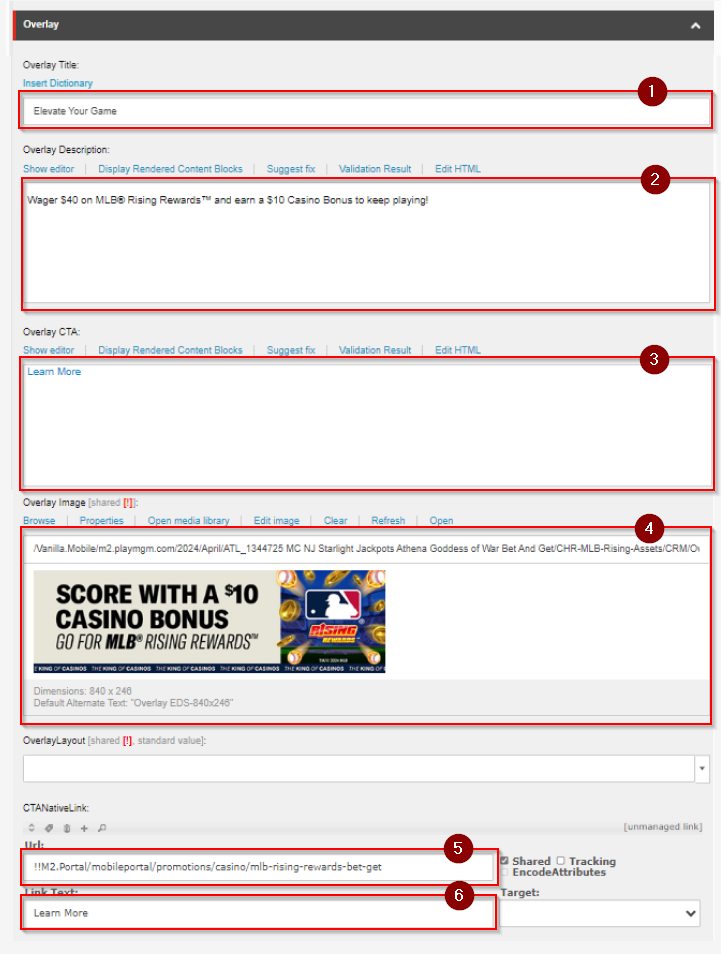
The Overlay is a section for the Rest ID component that holds the values for a popup message.
Here is an example:
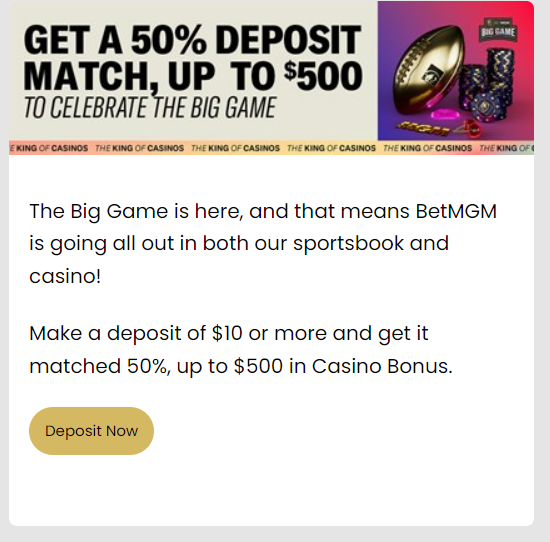
The old format for the overlay component is still used for Sports ticket, but it may change in the future as they may also adapt the new format.
- Current Format
- Old Format
Field | Value |
|---|---|
Overlay Title | Add the overlay title from the copy |
Overlay Description | Add the overlay description from the copy |
Overlay CTA | Add the overlay CTA. For more info refer to the CTA Guide. |
Overlay Image | Use image |
CTANativeLink URL | Put CTA URL here |
CTANativeLink Link Text | Put CTA Text here |
- Use camel casing for BetMGM
- Use capitalized for other labels
Do not add any inline style or class to the CTA.
Required Fields
Field | Value |
|---|---|
PreviewTitle |
|
PreviewTitle |
|
If the copy mentions a title for the Overlay put it inside <h2></h2> and place on the top before the description.
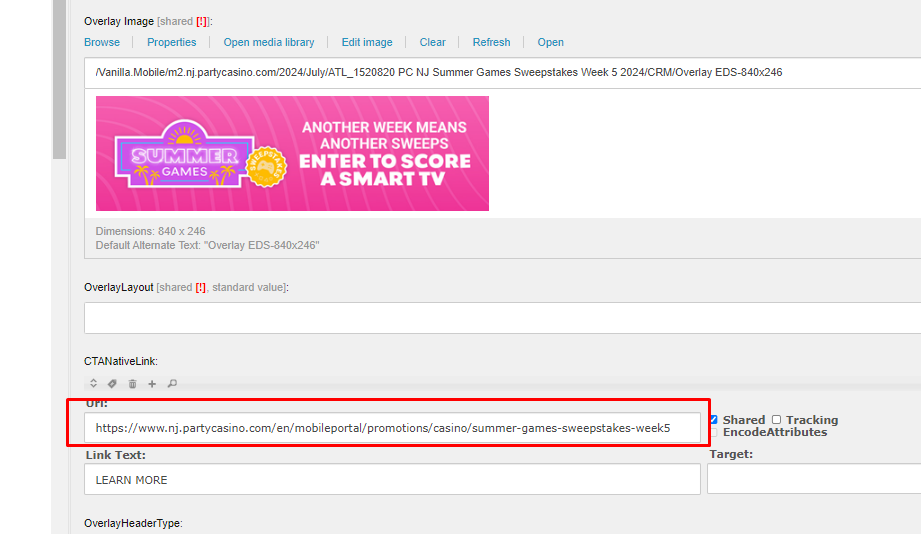
For PartyCasino the value used for the CTANativeLink is the Final URL format for the link.
Toaster
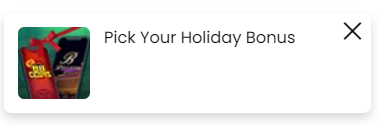
The Toaster is a section for the Rest ID component that holds the values for the toaster components that attracts the user's attention for notifications and messages.
Here is an example:
The old format for the overlay component is still used for Sports ticket, but it may change in the future as they may also adapt the new format.
- Current Format
- Old Format
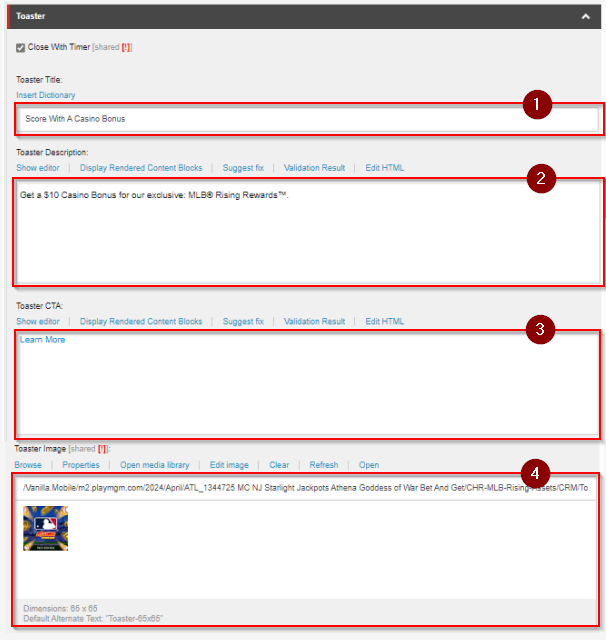
Field | Value |
|---|---|
Close With Timer checkbox | Make sure this checkbox is checked |
Toaster Title | Add the toaster title |
Toaster Description | Add the toaster description |
Toaster Image | Use image |
Toaster CTA | Add the toaster CTA. For more info refer to the CTA Guide. |
- Use camel casing for BetMGM
- Use capitalized for other labels
Do not add any inline style or class to the CTA.
Field | Value |
|---|---|
PreviewTitle |
|
PreviewTitle |
|
Enclose the toaster in <a> tag and add the CTA link to its href attribute
Push to Optimove
Do not forget to push to optimove the Rest ID you just created.

Commenting
Right click your Rest ID and copy both the Rest ID and the Direct Link, provide both these for your ticket comment.
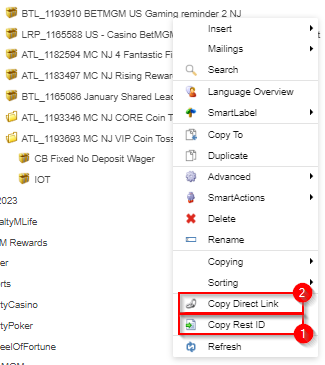
Embed the direct link of the Rest ID on the Rest ID itself or on a 'DL' beside it.
You can also provide a short description for what the Rest ID is(IOT, CB-Fixed No Deposit Wager, BS-Fixed Deposit Wager, etc...).
