Pick A Box
- Prize Tool - You'll find this in the Documents section of your ticket's Workfront.
- Box - Look for the
PAB Assetsfolder in the ticket's creatives.
The Promotion type dictates the Box asset to be used, as indicated by the ticket name. PAB promotions involve selecting a Box, Present, Card, and so forth, each corresponding to a designated asset.
Offer
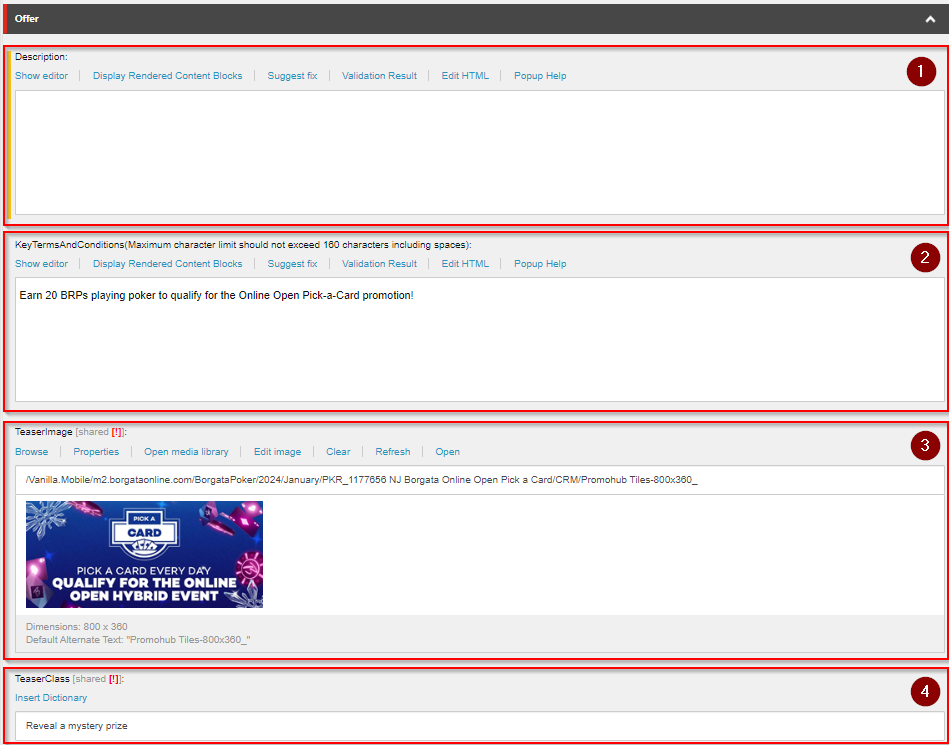
- Place an empty
<p></p>tag for the value of the description. - The KeyTermsAndConditions will take the value of the
Short Summaryin your copy document enclosed in<p></p> - For the Teaser Image place the
Promohub Tiles-800x360image. - Place
"Reveal a mystery prize"for the TeaserClass.
BoxSection
In this section is where the contents from the Prize Tool document will be placed. Each row will contain a prize title, an image that is assigned to that specific reward, and a description which contains a message and a CTA to direct the user to either claim or use the reward that has been granted to them.
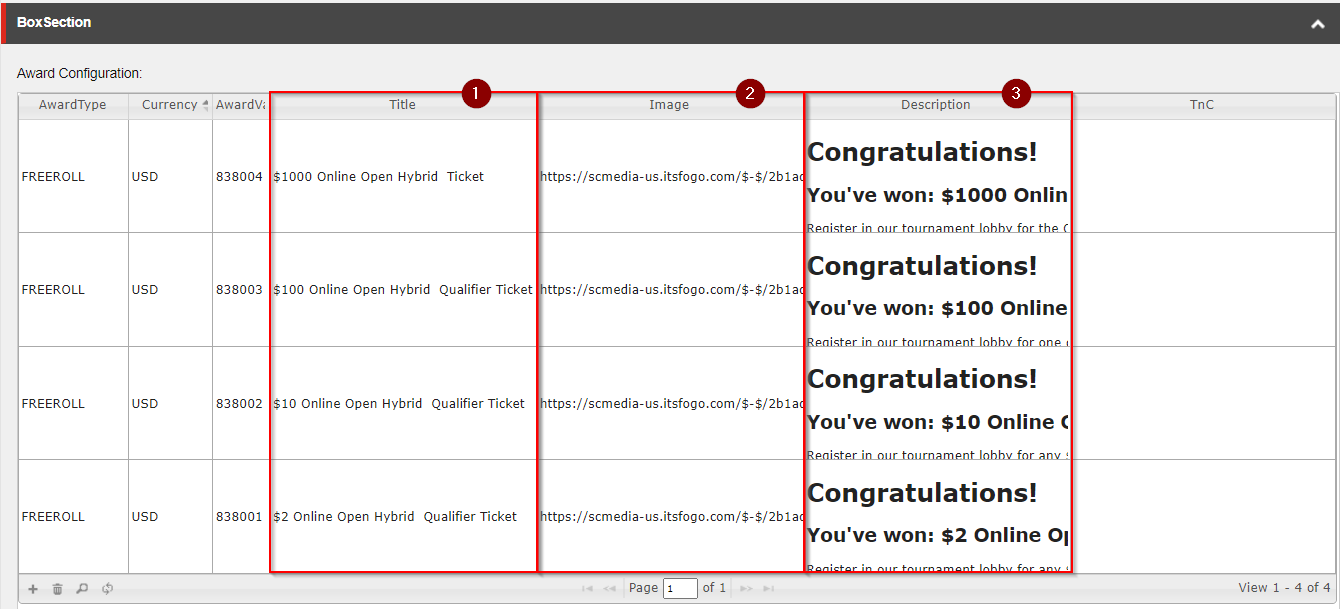
- Title - Place the the contents from the
PRIZEcolumn from thePrize Tooldocument in the same order to the BoxSection'sTitleRows. - Image - For the images use the
240x240image where it doesn't show the prize (see note below), and place it on all the rows only if there is only a single image provided, but for multiple different images place it the same order as in the creatives folder order.
The images may vary per promotion, for example for Pick a Box the image to use is the unopened box image, for Pick a Card its the facing down card image, etc.
Use the image url by clicking the Open link of the image on the Media Library. And copy the link on the URL and paste on the image column of the BoxSection table.
-
Description - The
Descriptioncolumn's value will be the value from thePRIZE DESCRIPTIONcolumn from thePrize Tooldocument, but it should be inserted in the HTML format shown below, just replace the appropriate value to be the same from yourPrize Tooldocument.
<div class="overlay-header">
<h1 class="mb-1 mt-0">Congratulations!</h1>
<h2 class="mb-2 mt-1">You won a prize in the Claw Machine promotion. </h2>
<p class="mb-2">Enjoy $1 Bonus Dollar valid on Crazy Chilli™.</p>
<p class="mb-2">T&Cs apply.</p>
<div class="mt-2">
<a rel="noopener noreferrer" class="btn btn-primary" href="{Reward CTA URL}">{Reward CTA Text}</a>
</div>
</div>
See the CTA guide to use the correct CTA for each description.
PageLayoutDetails
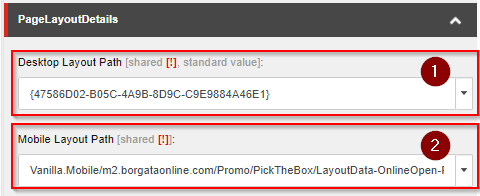
- Do not change the value for the
Desktop Layout Path - Click the Dropdown and navigate to the PAB Layout item that you have created for this PAB PAT
Content Section
For the Title Fields for T & C Header and How It Works Title, the values here doesn't need to be changed.
T & C Content
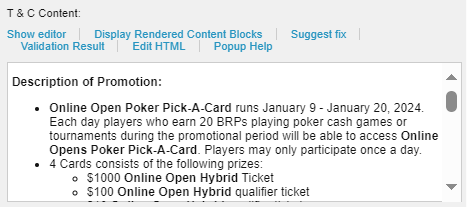
Place the same Terms and Conditions content you have placed for the MPP or Rest ID components if you have created any. For a full guide see this section.
How It Works Content
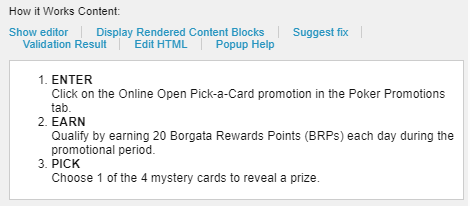
The value from this field will be from the 3 Steps section from your copy document, but it should be on HTML format, follow the format below and replace with the correct contents.
<section class="custom-tnc-hiw sk-bingo-container">
<article>
<div class="c-how-to-component">
<div class="c-predictor-message c-box">
<div class="c-how-it-works ">
<div class="c-how-it-works-collapsible__body c-display" id="ptb-how-it-works__desc">
<!-- how it work content -->
<ol>
    <li><strong>STEP 1 TITLE</strong><br />
    Step 1 Description</li>
    <li><strong>STEP 2 TITLE</strong><br />
    Step 2 Description</li>
    <li><strong>STEP 3 TITLE</strong><br />
    Step 3 Description</li>
</ol>
<!-- // end how it work content -->
</div>
</div>
</div>
</div>
</article>
</section>
Deposit and Wager Criteria Content
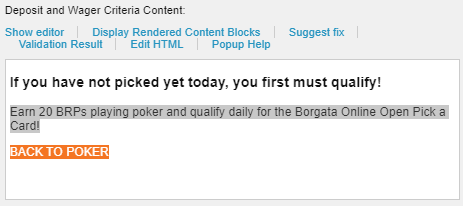
Place the HTML content below for this field and replace the correct description from the Overlay Description from you copy document.
For the CTA, use the appropriate home link depending if this PAT is for a Casino or Poker promotion ticket.
<h3 class="mb-2 mt-1">If you have not picked yet today, you first must qualify!</h3>
<p class="mb-1">{Overlay Description}</p>
<p><a href="{Poker or Casino Home Smartlink}" class="btn mt-1" style="background-color: {Brand Color Hex}; color:#ffffff;">BACK TO {POKER | CASINO}</a></p>
<style>
    .ptb .spin-result-dialog .overlay-content {
    text-align: center;
    }
</style>
Use the appropriate color for the CTA, see this guide for reference.
Key T & C Note Text
Place an empty <p></p> inside this field
Post Login Error Page Content
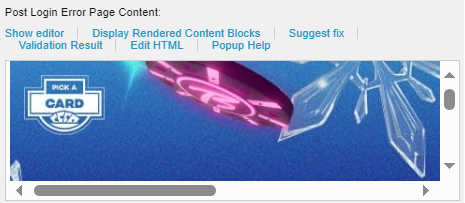
See HTML below and replace the image with the Background 955x562 Desktop Image and the CTA with the appropriate values depending on the promotion.
<div class="ptb ptb-prelogin container-bg">
  <div>
    <img class="box-static-img" alt="prelogin_wheel_only" src="{Background 955x562 Desktop Image}" />
    <br />
    <h4 class="postLoginErrorMessage">#ERROR_MESSAGE#</h4>
  </div>
  <div id="post-login-error" class="overlay-bg hover" style="display: block;">
    <div class="spin-result-dialog">
      <div class="overlay-content">
        <a onclick="DisplayNoneById('post-login-error')">
            <span class="ui-icon ui-icon-size-lg ui-close ui-close-primary theme-ex close-btn"></span>
        </a>
        <div class="overlay-header">
          <h4 class="postLoginErrorMessage">#ERROR_MESSAGE#</h4>
        </div>
        <div class="footer clearfix">
          <a class="btn-l3 btn prominent" href="{Poker or Casino Home Smartlink}">Back To {Poker | Casino}</a>
        </div>
      </div>
    </div>
  </div>
</div>
Error Page Content
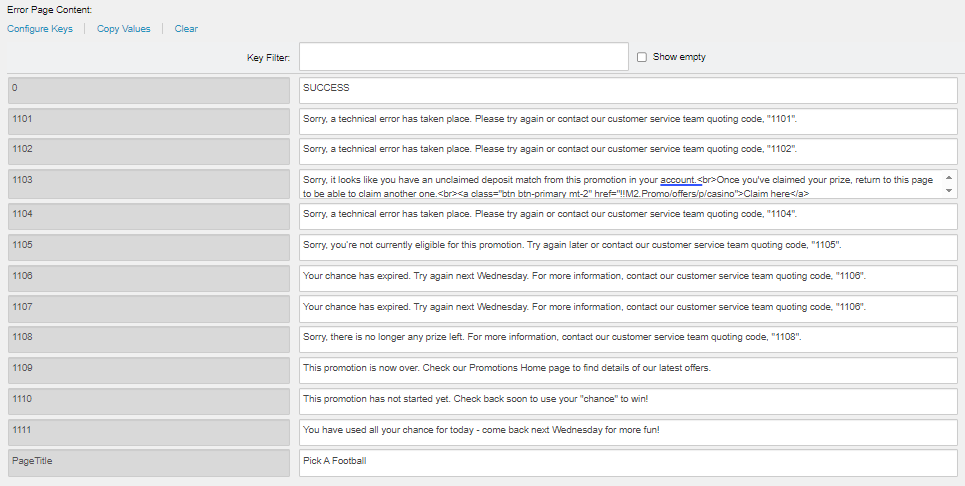
Ensure that the values for each keys are with the proper values. 1103 is updated depending if the promotion is for Casino or Poker, and PageTitle to be updated with Promohub Key Terms > H1
| Code | Content |
|---|---|
| 0 | SUCCESS |
| 1101 | Sorry, a technical error has taken place. Please try again or contact our customer service team quoting code, "1101". |
| 1102 | Sorry, a technical error has taken place. Please try again or contact our customer service team quoting code, "1102". |
| 1103 | |
| 1104 | Sorry, a technical error has taken place. Please try again or contact our customer service team quoting code, "1104". |
| 1105 | Sorry, you’re not currently eligible for this promotion. Try again later or contact our customer service team quoting code, "1105". |
| 1106 | Your chance has expired. Try again next Wednesday. For more information, contact our customer service team quoting code, "1106". |
| 1107 | Your chance has expired. Try again next Wednesday. For more information, contact our customer service team quoting code, "1106". |
| 1108 | Sorry, there is no longer any prize left. For more information, contact our customer service team quoting code, "1108". |
| 1109 | This promotion is now over. Check our Promotions Home page to find details of our latest offers. |
| 1110 | This promotion has not started yet. Check back soon to use your "chance" to win! |
| 1111 | You have used all your chance for today - come back next Wednesday for more fun! |
| PageTitle | Promo Hub Key Terms > H1 |