Tournament Page
sitecore > content > Vanilla.Mobile > state/brand > MobilePoker-v1.0 > Tournaments
In this page, you'll learn how to build a Tournament Page for Poker, which consists of two subcomponents: the Tournament Page itself, and the Side Navigation.
If Casino has MPP, Poker has Tournament Page or Tourney Page. Compare to MPP, Tournament Page requires many components in the copy such as PROMO HUB KEY TERMS, Poker Tile, PROMO LANDING PAGE, and Terms & Conditions.
Sample Tourney Page
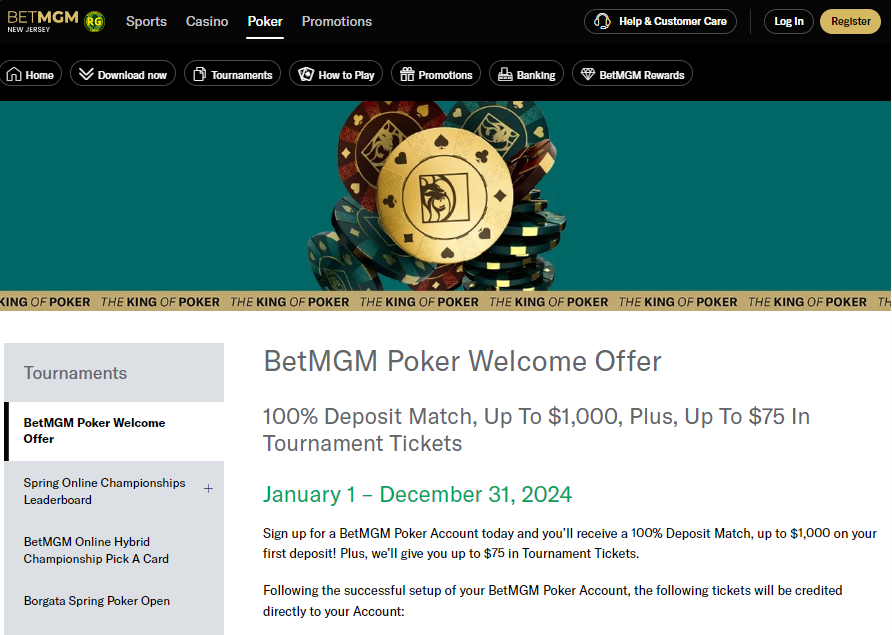
Start Building...
Step 1: Duplicate File
It's always better to duplicate the file with same promo you'll build. Like if it's Leaderboard, look for file that's build for Leaderboad; Champoinship for Champoinship; and the like.
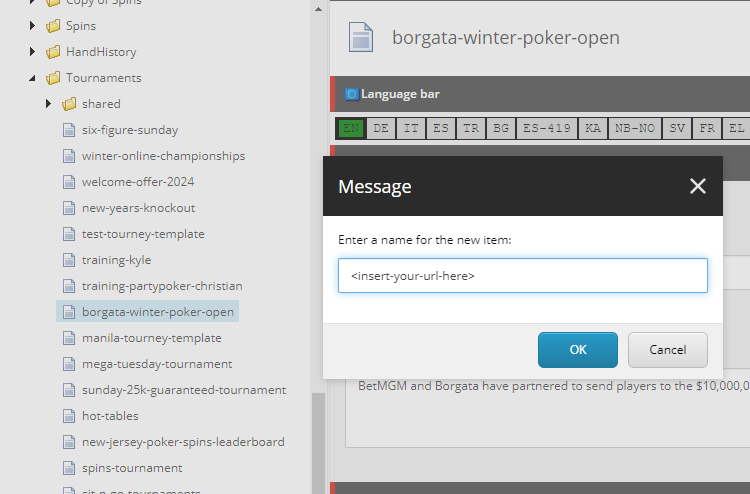 Right-click your desired file, choose Duplicate, then rename it with your URL
Step 2: Update SEO
Fill the following field using the PROMO HUB KEY TERMS from the copy.
- Title ➡ H1
- Description ➡ Subtitle
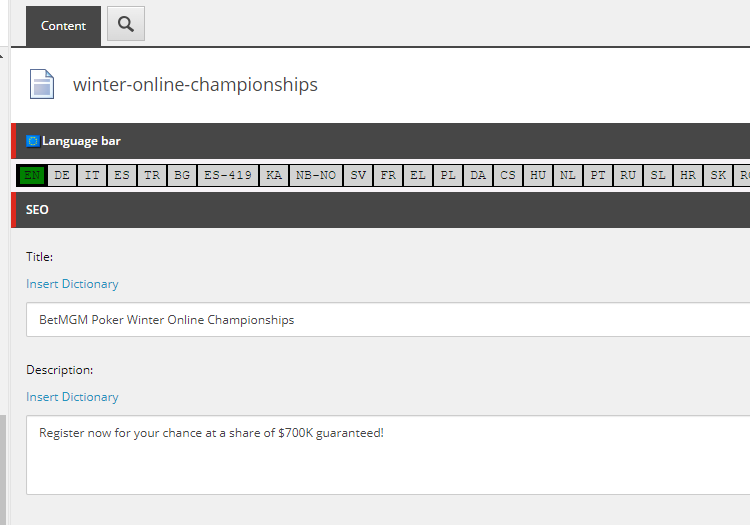 Make sure that there are no double space, and space after the sentence/phrase
for partypoker add this part after the H1 Title. 
Step 3: Update Synopsis
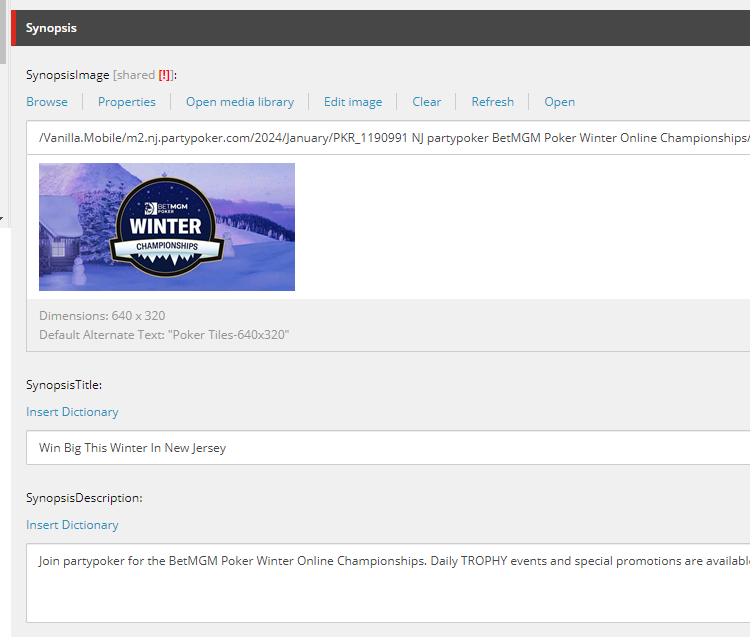
Fill the followng fields using the Poker Tile from the copy.
- SypnosisImage ➡ Poker Tiles-640x320 Asset
- SypnosisTitle ➡ H1
- SypnosisDescription ➡ Subtitle
Step 4: Update MainContent1
This Content should follow this format:
<h1><strong>{Promo Landing Page Main Image}</strong> </h1>
<h2><strong>{Promo Landing Page Title/Subtitle}</strong><h2>
<h2 style="color: #(State Hex Color);"> <strong>Promo Date</strong>\</h2>
<p>Sentence case. Promotional description</p>
<p>Most of the time this contains Table, follow Table formatting on the link provided below.</p>
<p><em>Please make sure to read our full Terms and Conditions before participating in this promotion.</em></p>
<p><a class="btn" style="background: #{State Hex Color); color: #ffffff;" href="{SmartLink}">{CTA}</a></p>
Fill this content using the following:
Field | Value |
|---|---|
PROMO NAME | Text found on PROMO LANDING PAGE's Main Image [MPP 1080x486] |
Subtitle | PROMO LANDING PAGE's Subtitle |
Promo Date | PROMO LANDING PAGE's Promotional Dates |
Promo description | PROMO LANDING PAGE's Promotional Description |
CTA | Depends on the Promo. Check CTA Docs Page for an exhaustive list of CTA |
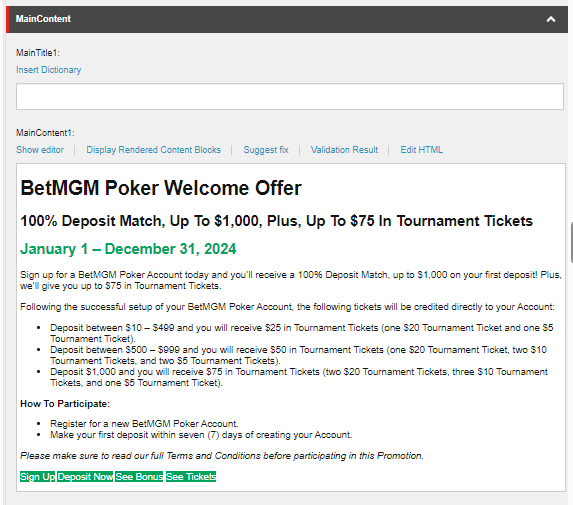
You can either click Show editor, then go to HTML TAB (found below the text editor) or Edit HTML to insert the required content.
Check Table Docs Page for an exhaustive list of tables.
Step 5: Update Terms
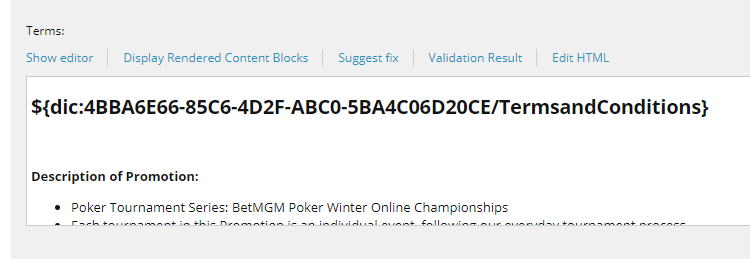
The Poker Tournament Page's Terms & Condition has an additional line compare to other builds. Copy the code below and add this before your Ticket's Terms & Conditions.
<h2>${dic:4BBA6E66-85C6-4D2F-ABC0-5BA4C06D20CE/TermsandConditions}</h2>
Check Documents Page on How To Clean your Terms and Conditions
Tournaments Side Navigation
sitecore > content/Vanilla.Mobile > state/brand > MobilePoker-v1.0> Tournaments > shared > navigation
Step 6: Duplicate File
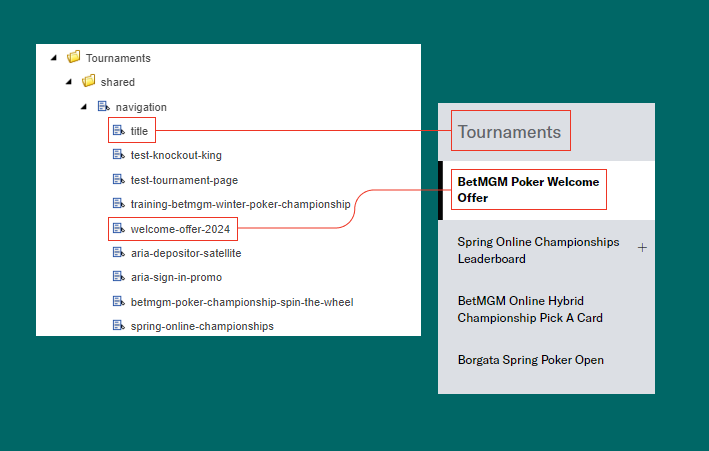
Duplicate File, and rename it with your ticket's URL. Please note not to move your file above the file with file name "Title" as this is the Side Nav Title seen in the image below.
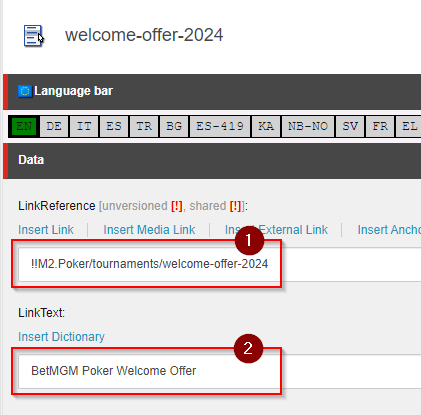
Step 7: Update Data
Update the following fields:
LinkReference ➡ Your Tourney Page Smartlink (e.g. !!M2.Poker/tournaments/<insert-your-url-here>)
LinkText ➡ Promo Name in Camel Case
Filter & Publishing Dates
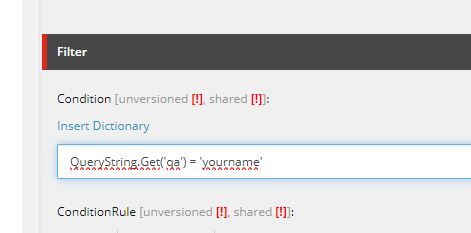
Step 8: Filter
Both Tourney Page and Side-Nav must have filter.
QueryString.Get('qa') = 'manila'
Step 9: Publishing Date
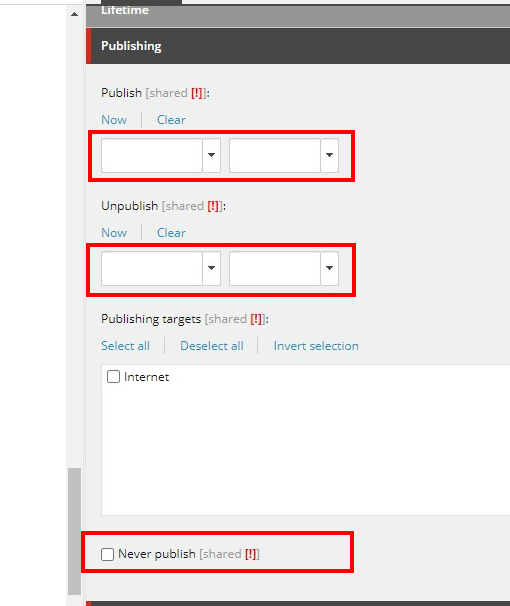
Both Tourney Page and Side-Nav must have the same publishing date. If it's a new build, the publishing date should be empty and the Never Publish must be ▢ unticked.